 Pear Docs
Browse commands with the interactive menu
Use pear --menu to find and run CLI commands from a filterable list and a real form, instead of memorizing flags.
pear --menu opens an interactive, terminal-driven menu for the whole CLI: pick a command from a filterable list, fill in its arguments and flags as a real form, confirm, and Pear runs exactly what typing the equivalent command would have run. It's the fastest way to discover what a command needs without leaving your terminal to check the reference.
Requires Pear 3.2.0 or newer—run pear versions to check what you're on. Not available on 3.1.x or earlier. The command groups and group help described below need Pear 3.7.0; on 3.2.0 to 3.6.x the menu is one flat list.
Need the pear CLI? Install it from install.pears.com, or prefix any command below with npx. See Install & upgrade for details.
Launch the menu
pear --menuThis needs an interactive terminal (a TTY). Run it from a script, a CI job, or any other non-interactive shell and it exits immediately with pear --menu requires an interactive terminal.
For scripts and automation, use the command's flags directly instead—see Scripting with --json.
Find a command
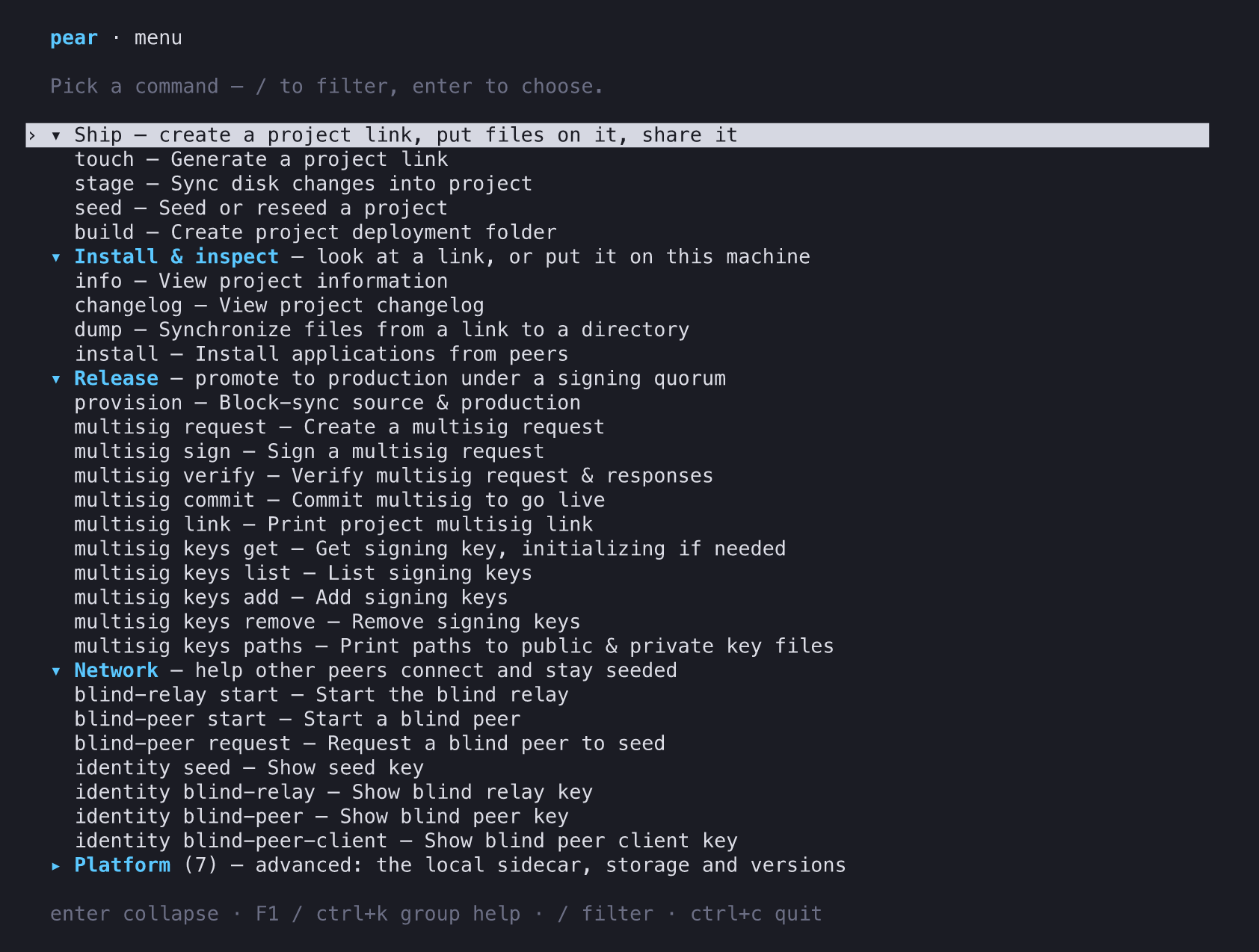
The menu opens on a list of every command, grouped by what you are doing with it:
- Ship—
touch,stage,seed, andbuild: create a link, put files on it, share it, in that order. - Install & inspect—
info,changelog,dump, andinstall: look at a link, or put it on this machine. None of them changes the link. - Release—
provisionand themultisigsubcommands: promote a build to production under a signing quorum. - Network—
blind-relay,blind-peer, andidentity: help other peers connect and stay seeded. - Platform—
sidecar,cores,gc,data,versions, andhelp: the local sidecar, storage, and versions. This group starts collapsed because you rarely need it to ship an app.
Move to a command and press enter to choose it. Press enter on a group header to collapse or expand the group. The commands keep their full names under a group, so multisig sign is still pear multisig sign.
Each group has a help panel that explains how its commands fit together. Press F1 or ctrl+k on a group to open it, and esc to close it.
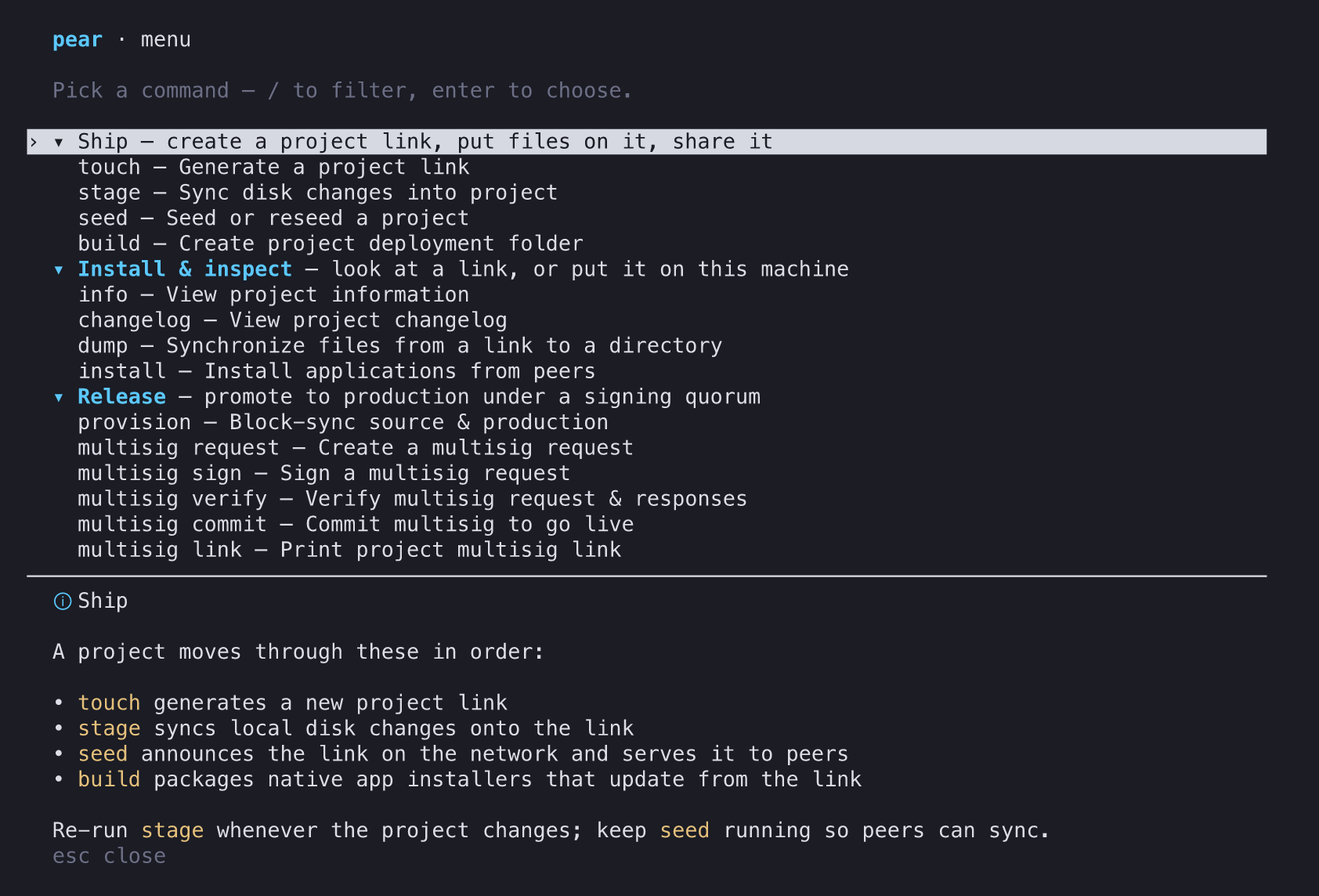
To narrow the list, press / and type. The list keeps the header of each group that still has a match, so you can see where a command lives.
/— start filteringenter— choose the highlighted command, or collapse or expand the highlighted groupF1orctrl+k— open the help panel for the groupesc— close the help panelctrl+c— quit
Fill in the form
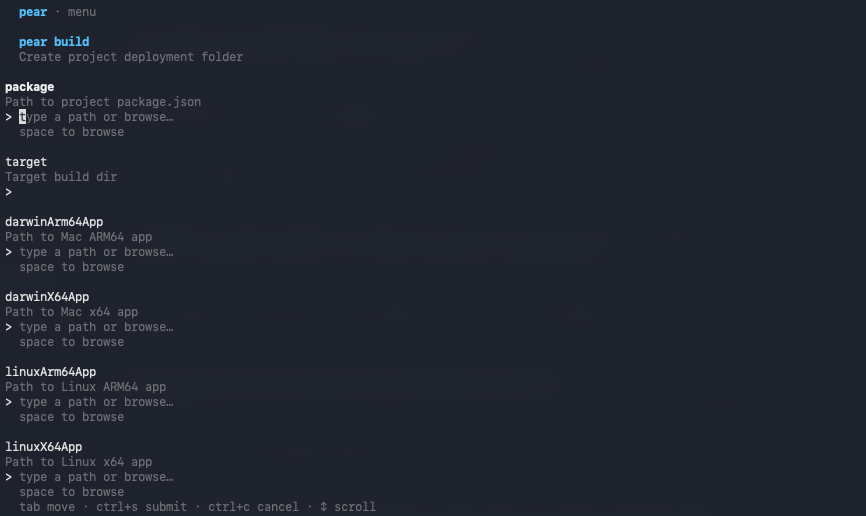
Once you pick a command, the menu builds a real form from its arguments and flags—one field per parameter, using the same descriptions and defaults documented on the CLI reference.
Fill in what you need, leave the rest at their defaults, and confirm to run the command.
The result is identical to typing the equivalent pear <command> --flags yourself—the menu is a different way to assemble the same call, not a different tool.
tab— move between fieldsctrl+s— submit and run the commandctrl+c— cancel
Forms with more fields than fit on screen also show ↕ scroll.
From Pear 3.3.0 each field also carries a hint covering that argument or flag's constraints, how it interacts with the others, and how it fails—for example that pear stage --dry-run does not guard --truncate, or that --ignore accepts glob patterns while --only matches by path prefix. These hints appear only in the menu; pear help <command> shows the one-line descriptions without them.
When to use it
Use the menu when you're exploring a command's flags—new to Pear, or new to a command you don't use often—and don't want to context-switch to the reference to check a flag's spelling or default. Use flags directly once you know the shape of the command you want, for scripts, CI, or anything else that needs to run non-interactively.
See also
- Command Line Interface (CLI) reference—the full command list the menu is built from.
- Scripting with
--json—the non-interactive path for automation. - Troubleshoot common issues—for problems beyond what this guide covers.
Last updated on